
General Introduction to the Guide
Introduction
This user guide is designed to explain how the Customer Portal is to be used. The portal enables merchants to view customers’ behaviour and deliver an informed response. It is assumed the reader has been granted access by the Littlepay Operations team.
Scope and Objective
The scope of this guide is in the use of the portal and methodologies in supporting customers. This is in terms of viewing customer transaction histories, explaining charges, and if necessary, processing refunds.
The customer portal created by Littlepay allows the cardholder to gain a transaction history of their previous 14 days of travel. This is not limited to just viewing transaction history, as the customer portal will also show if the customer is on the deny list for any outstanding debts and allow the customers to view this status as well as request refunds.
Login
Step 1
The splash page will ask the customer to verify their card in order to view their transactions.
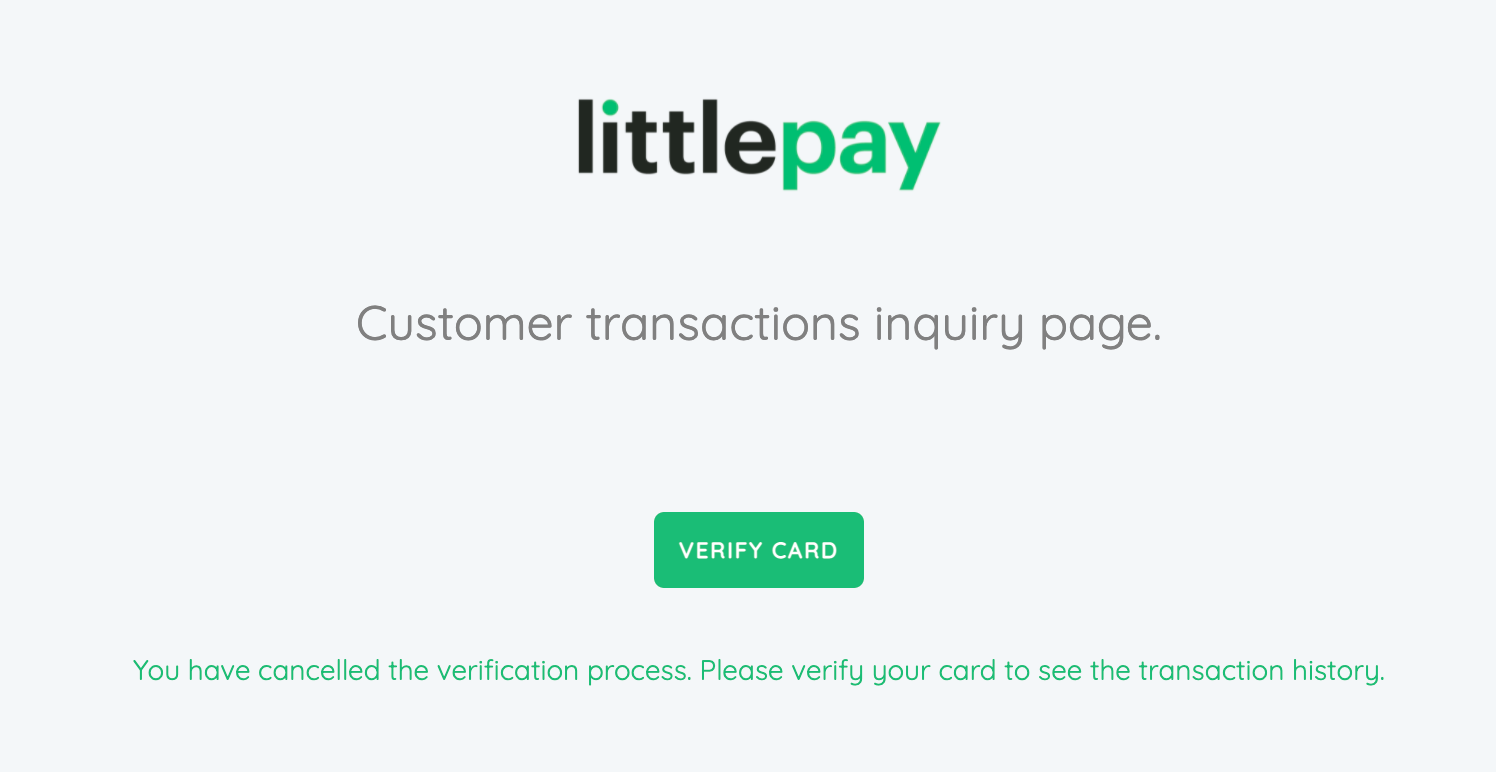
Step 2
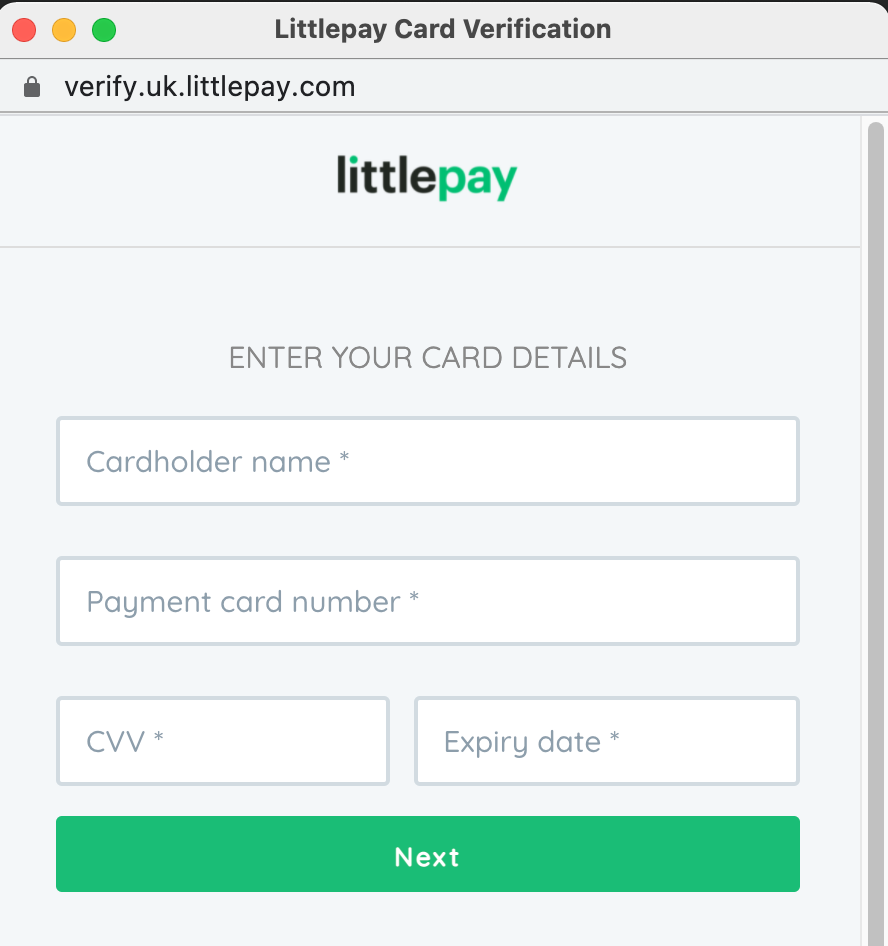
Once the customer clicks the Verify Card button, a new window will open to allow Littlepay to process a card verification check on their bank card.
Card information is required for card verification checks to be authorised and ensure the card details entered are correct.
Step 3
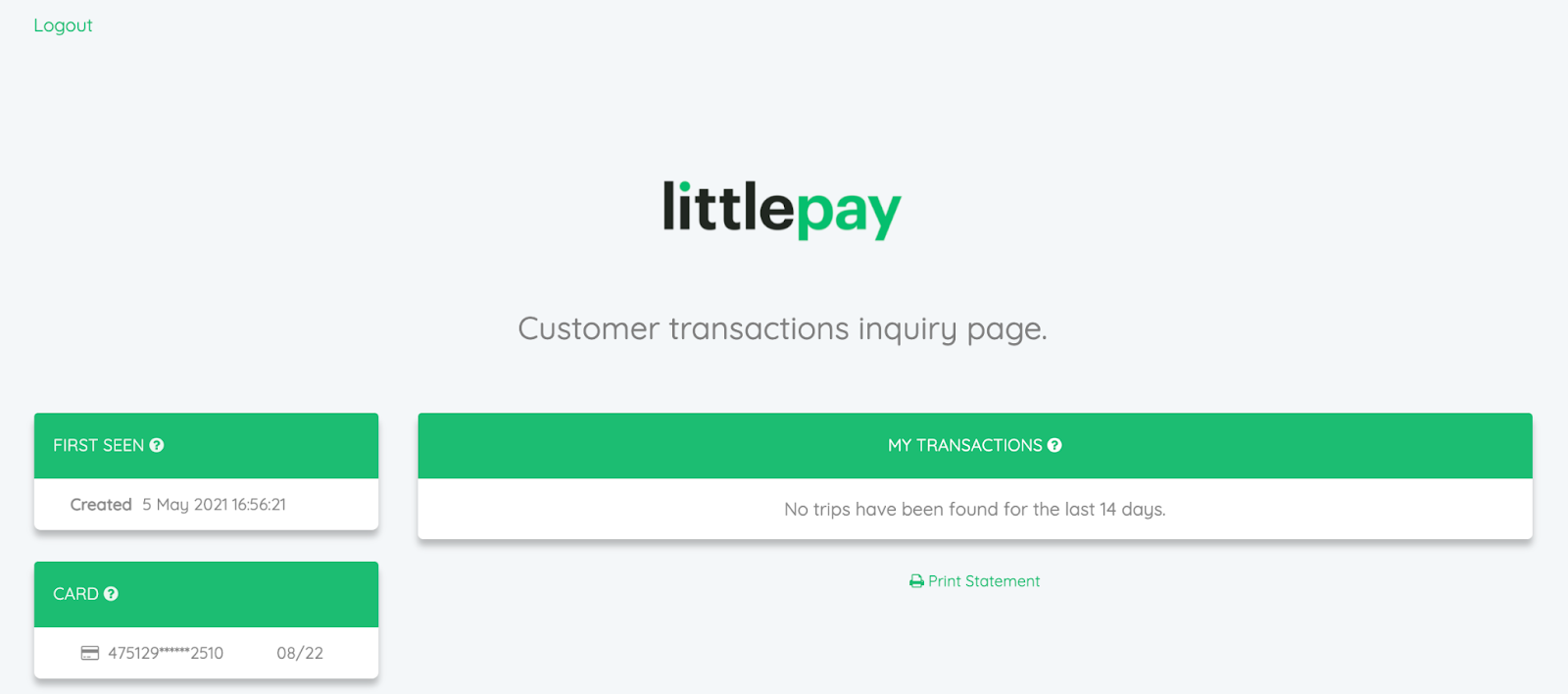
Once a customer has successfully entered their card details, the portal will display any transactions Littlepay has processed from the past 14 days on their card. If the customer has no transactions from this period, the portal will display the following message - ‘No trips have been found for the last 14 days’.
If the portal is showing transactions for the customer, they will be able to see when they travelled, what ticket they purchased, as well as how much they were charged.
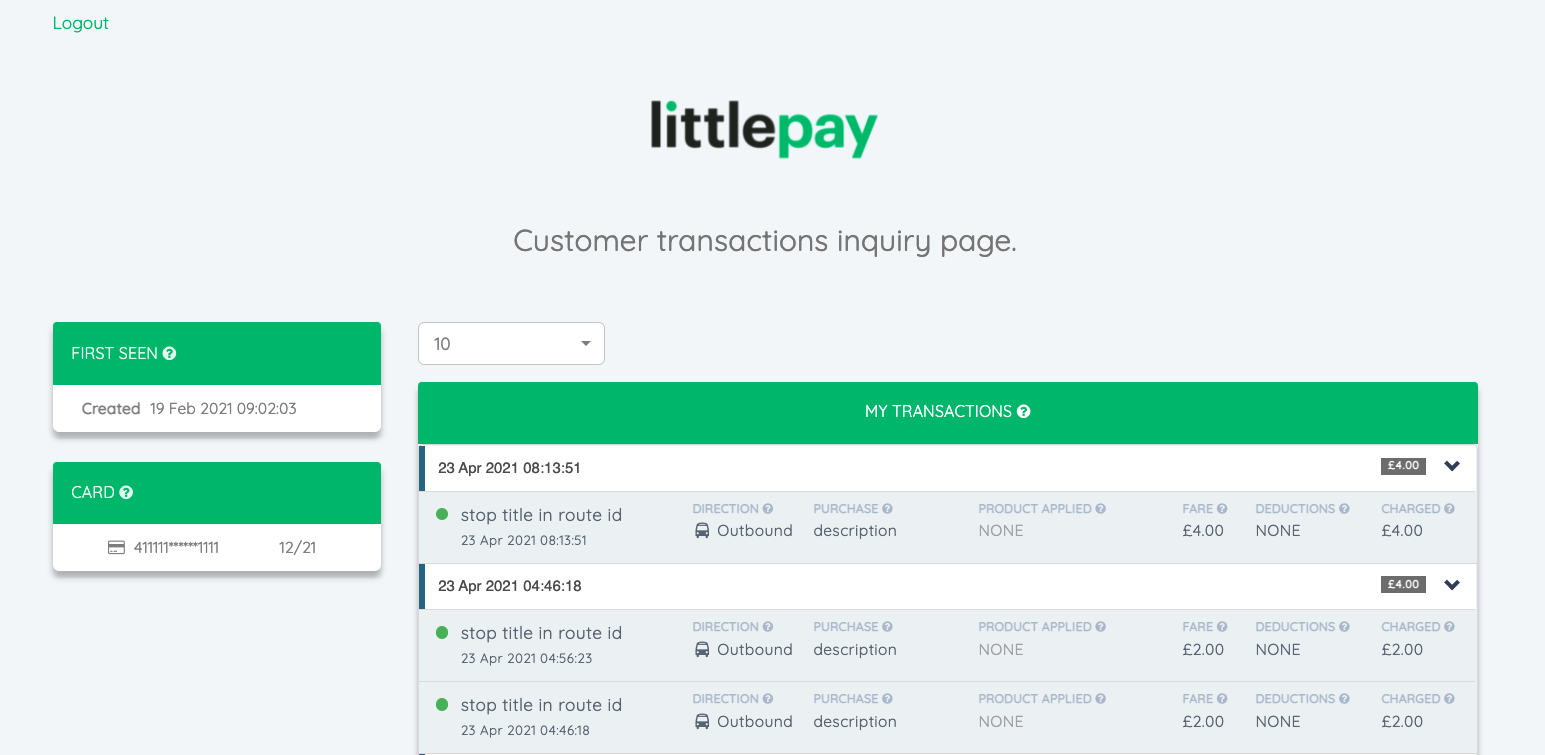
The portal will also show the date the customer first used their card with this merchant, as well as showing the masked pan and expiry date we have on file for this card.
Capping
If the customer has been capped in line with any capping rules the operator has in place, the transaction will show exactly how much they have been charged, and when the adjustment took place.
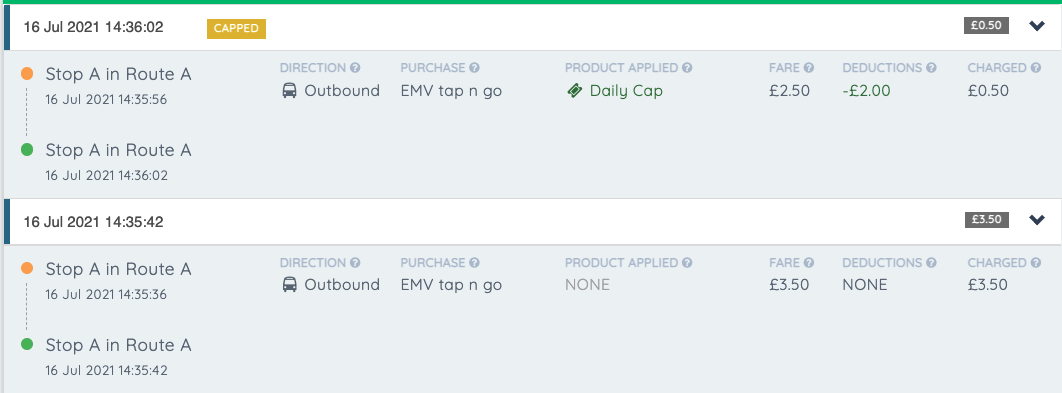
Within the Product Applied column, the name of the capping product will be displayed if an adjustment has been applied.
Any transaction which has been capped will show a yellow CAPPED status next to the time and date of when the ticket was purchased.
Request a refund for Incomplete Transactions
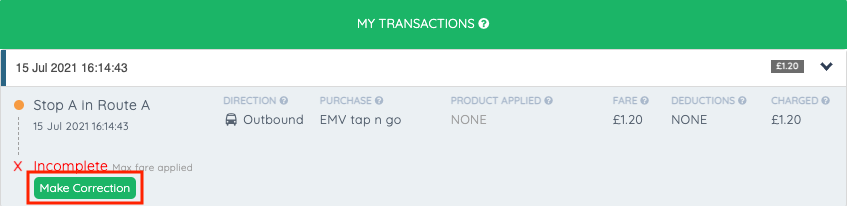
If the operator has a capping rule live which is a Tap On, Tap Off configuration, the customer portal will allow users to request a refund for any Incomplete transaction which has been settled from their account. A transaction is updated as Incomplete when the customer Taps On and forgets to Tap Off, and are subsequently charged the fare to the end of the bus journey.
In order to request a refund, the customer clicks the Make Correction button on an incomplete journey, and enters the Proposed Amount they believe they should have been charged, and enters their reason for the refund request. The customer will then need to click the Submit Correction Request button to submit their request for approval.
The customer will not be able to request a full refund from the customer portal. They can only request a partial refund which they believe they are due, should they have forgotten to tap off the vehicle when alighting.
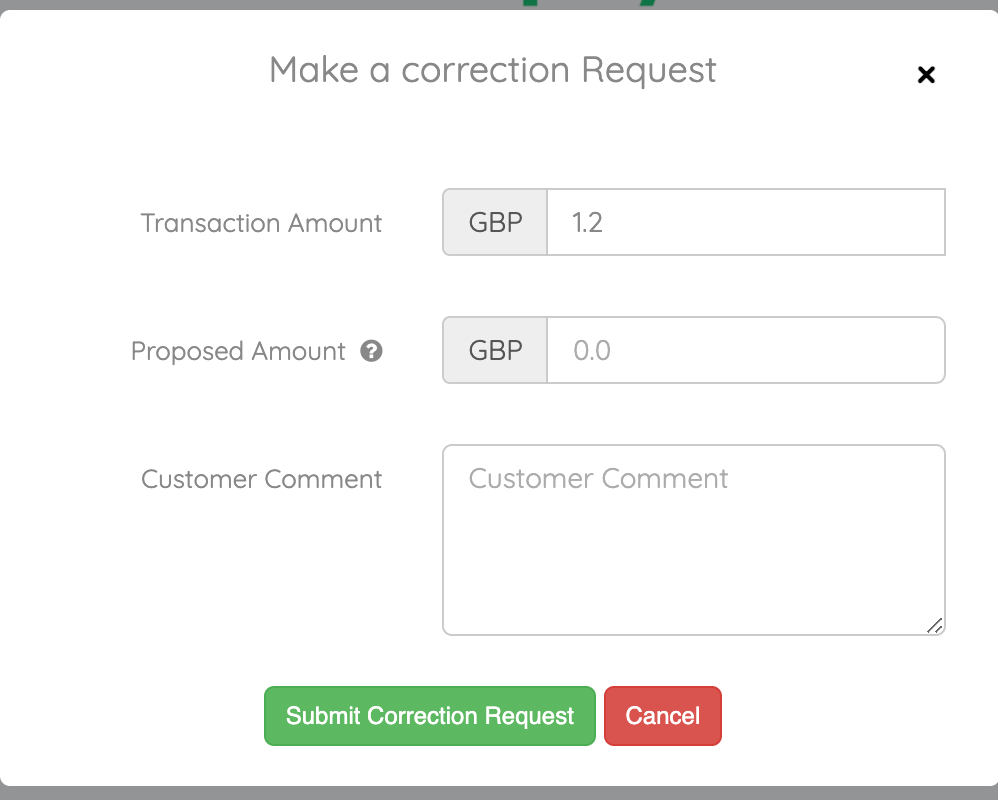
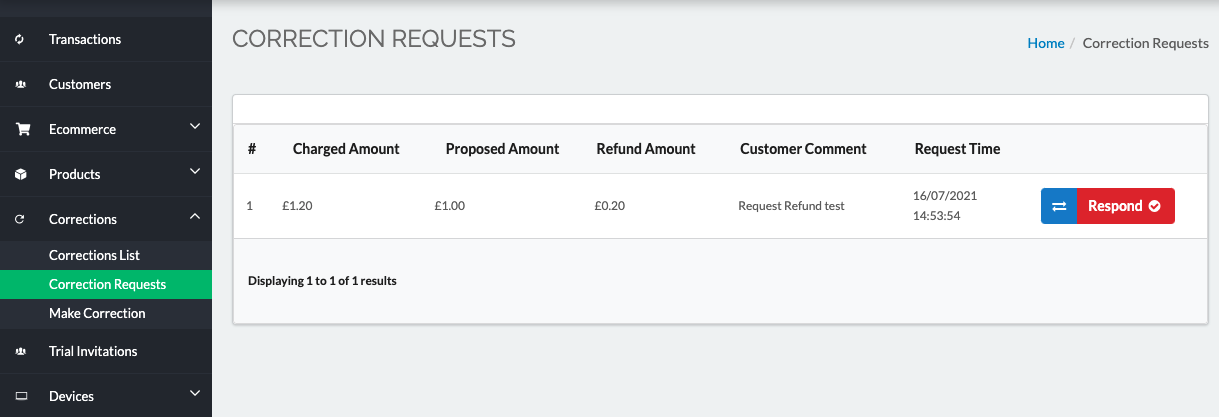
The request is presented in the merchant portal for the operator to review, and either approve or deny the refund request.
Once the refund request has been submitted, the customer will no longer be able to request any further refund requests for this transaction, and it will be updated to show the status of their request.
On the merchant portal, the operator will now be able to deny or approve the request by clicking on the Respond button next to the transaction, under Corrections -> Correction Requests.
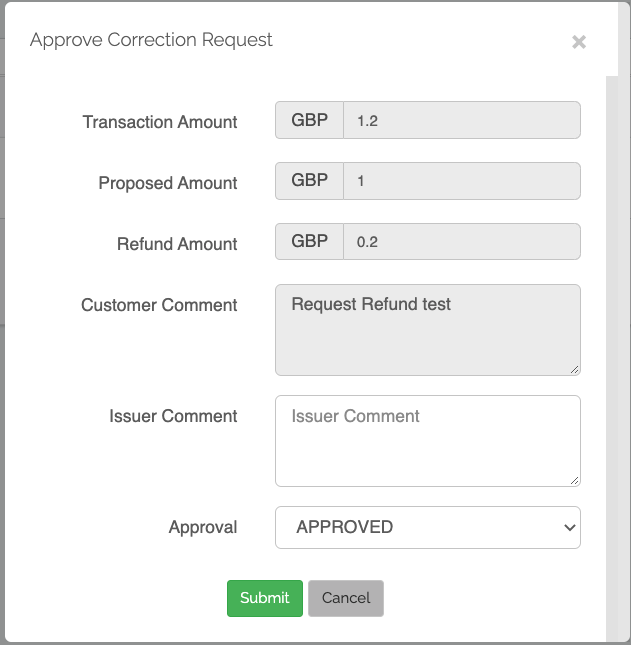
Once the request has been processed, the transaction will be updated on the Customer Portal to confirm if their refund request has been either approved or denied.
Comments
Please sign in to leave a comment.